
Solexy SWA/SWS R**
Cellular Router
ATEX Certified 4G LTE / 5G RedCap Cellular Router
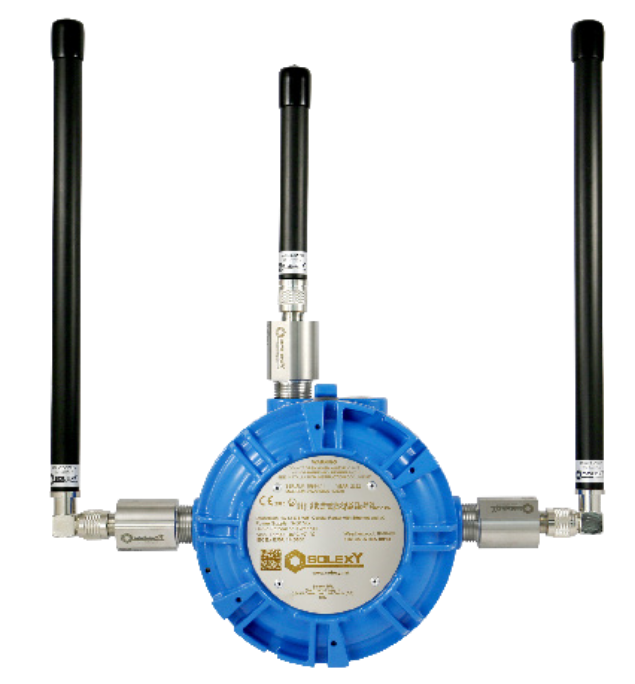
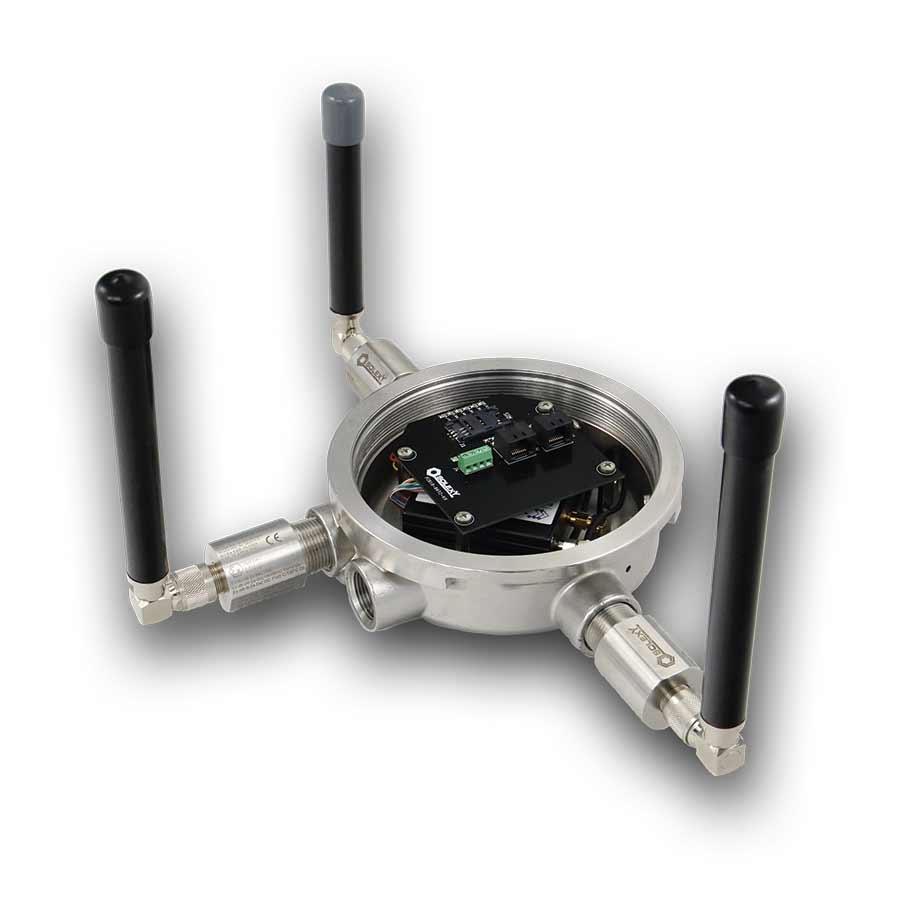
Solexy SWA/SWS R**
ATEX Certified 4G LTE / 5G RedCap (Reduced Capacity) Cellular Router
The Solexy SWA/SWS R** is an explosion-proof industrial cellular router designed to provide network connectivity in hazardous areas using 4G LTE or, with the appropriate model, 5G RedCap. Suitable for ATEX Zone 1, 2, 21 and 22 installations, it enables equipment to communicate over cellular networks without relying on an existing site Wi-Fi connection.
Built around Teltonika router technology and housed in a Solexy explosion-proof enclosure, the unit provides connectivity for both Wi-Fi and Ethernet devices. The three-antenna configuration uses two cellular antennas and one Wi-Fi antenna, allowing nearby wireless devices to communicate with the wider network through the router's cellular connection.
Available with aluminium (SWA) or stainless steel (SWS) enclosures, the router combines industrial networking capabilities with ATEX and IECEx certification for use in hazardous environments.
Key Features
- ATEX & IECEx Certified: Suitable for hazardous areas classified as Zones 1, 2, 21 and 22.
- 4G LTE / 5G RedCap Connectivity: Industrial cellular networking with maximum data rates of 150 Mbps (4G LTE) or 223 Mbps (5G RedCap), depending on configuration.
- Wi-Fi and Ethernet Connectivity: Connects compatible wireless devices via IEEE 802.11 b/g/n Wi-Fi or wired equipment through two 10/100 Mbps Ethernet ports.
- Three-Antenna Configuration: Two cellular antenna connections and one Wi-Fi antenna connection, using three N-female antenna couplers.
- Industrial Enclosure: Available in aluminium (SWA) or stainless steel (SWS), with IP66/IP68 protection.
- Network Security and Management: Supports VPN connections, network failover, remote monitoring and management through Teltonika RutOS.
- Flexible Power Supply: Operates from 9–30 VDC or passive Power over Ethernet (PoE).
- Regional and Network Options: Configurations available for different cellular markets, including an eSIM variant.
Connecting equipment beyond the existing Wi-Fi network
Unlike a conventional Wi-Fi access point that typically connects to a site network through Ethernet or fibre infrastructure, the Solexy cellular router uses a mobile network connection to provide access to the wider network.
Wi-Fi-enabled equipment can connect directly to the router, while devices without wireless capability can be connected through its Ethernet ports. Data can then be transmitted over a compatible public cellular network or private industrial cellular network.
This arrangement is particularly useful where installing network cabling is impractical, existing Wi-Fi coverage is unavailable, or equipment needs to remain connected independently of a customer's local network.
Typical applications
-
Hire equipment and mobile machinery: Allows equipment owners to exchange operational data with their assets through a cellular connection without requiring access to the customer's Wi-Fi infrastructure.
-
Remote sensors and monitoring equipment: Provides a cellular connection for compatible devices operating in areas of a plant beyond the reach of the existing Wi-Fi network.
-
Private industrial cellular networks: Connects compatible Wi-Fi or Ethernet equipment to a site's private LTE or supported 5G network.
-
CCTV and remote video monitoring: Enables Ethernet-connected cameras to transmit footage over a cellular network. A cellular-only configuration without Wi-Fi is also available where wireless local connectivity is unnecessary.
Configuration and network compatibility
The Solexy router is available in different configurations to suit the intended installation, including regional cellular variants, an eSIM option and a 5G RedCap version.
The correct model depends on the country of operation, available cellular network, SIM requirements and the equipment being connected. The standard three-antenna configuration provides both cellular and Wi-Fi connectivity, while a separate two-antenna version is available for cellular-only applications.
For installations using private LTE or 5G networks, the supported frequency bands and network compatibility should be confirmed before selecting the router.
Contact Exloc Instruments to discuss the appropriate Solexy cellular router configuration for your application.
What is 5G RedCap?
5G RedCap stands for Reduced Capability and is a version of 5G developed specifically for connected devices that don't require the full performance of conventional 5G. Introduced as part of 3GPP Release 17, it is also known as 5G NR-Light and is particularly relevant to industrial Internet of Things (IoT) applications.
Conventional 5G technology can deliver extremely high data rates, but many industrial applications simply don't need that level of performance. Equipment used for remote monitoring, telemetry, machinery diagnostics and certain video applications often needs to exchange relatively modest amounts of data. RedCap addresses this by reducing some of the technical requirements of 5G, including the bandwidth supported by the device. This allows manufacturers to develop cellular equipment with simpler hardware and potentially lower power consumption, while retaining access to 5G network technology.
For industrial users, this makes RedCap an interesting option between established 4G LTE connectivity and higher-performance 5G equipment. It isn't necessarily faster than every 4G connection, nor does every application require it. The main benefit is providing a more appropriate level of 5G capability for equipment that doesn't need the full complexity of conventional 5G.
The Solexy explosion-proof cellular router is available with 5G RedCap connectivity, supporting manufacturer-stated maximum data rates of up to 223 Mbps. One important consideration is network compatibility: RedCap requires a compatible 5G Standalone (SA) network, and not every network offering 5G coverage necessarily supports it. The available network, supported frequency bands and intended application should therefore be checked before selecting the router configuration.